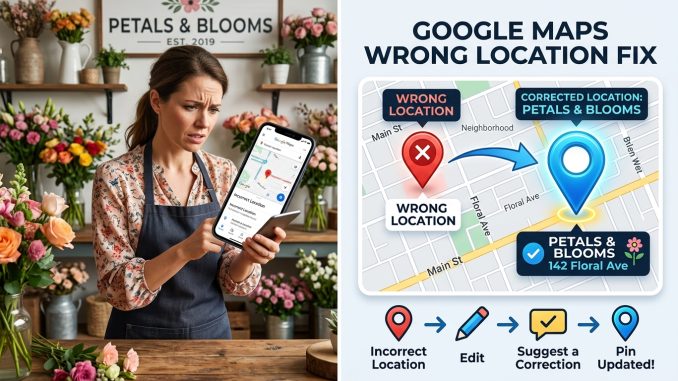
Nothing frustrates customers more than following Google Maps to your business only to end up at the wrong location. It can lead to missed appointments, lost sales, negative reviews, and confused customers who may decide to visit a competitor instead.
If your Google Business Profile is showing the wrong location on Google Maps, don’t panic. In most cases, the problem can be fixed by updating your business information or correcting your map pin.
In this guide, you’ll learn why your business location may be incorrect, how to fix it, and what to do if Google doesn’t approve your changes.
Why Is My Business Showing the Wrong Location on Google Maps?
There are several reasons why your business location might be inaccurate.
Common causes include:
- The address was entered incorrectly during setup.
- The map pin is placed in the wrong location.
- You recently moved your business.
- Google updated your listing based on trusted sources.
- Someone suggested an edit to your business information.
- Your recent address change is still under review.
- GPS inaccuracies or mapping errors.
The first step is identifying exactly what’s wrong—whether it’s the address, the map marker, or both.
How to Fix Your Business Location on Google Maps
Follow these steps to update your location.
Step 1: Sign in to Your Google Business Profile
Log in using the Google account that manages your Business Profile.
Search for your business name on Google while signed in, or access your profile through Google Maps.
Step 2: Edit Your Business Information
Click Edit Profile.
Open the Location section.
Here you can:
- Correct your business address.
- Update your service area.
- Review your location details.
Make sure every detail matches your actual business location.
Step 3: Move the Map Pin
Even if your address is correct, the map pin may be slightly off.
Drag the pin so it sits directly on your storefront, office, or business entrance.
This small adjustment can make a big difference for customers using navigation.
Step 4: Save Your Changes
Click Save.
Google may review your changes before publishing them.
Simple corrections often appear quickly, while larger changes may take longer if additional verification is required.
What If You’ve Moved Your Business?
If your business has relocated, update your address as soon as possible.
You’ll also want to:
- Update your website.
- Change your address on social media.
- Update online directories.
- Inform existing customers.
- Revise any printed marketing materials.
Keeping your business information consistent across the web helps Google trust your new location.
Why Google May Ask You to Verify Again
Changing your business address is considered a significant update.
Because of this, Google may ask you to complete another verification before the new address becomes public.
Depending on your business, Google may request:
- Video verification.
- Photos of your business.
- Business documents.
- Other verification methods offered within your account.
Although this can be inconvenient, it’s designed to help protect the accuracy of Google Maps.
My Address Is Correct, but the Pin Is Wrong
This is more common than many business owners realize.
Customers may report that navigation takes them:
- Across the street.
- Behind the building.
- To a neighboring property.
- To the wrong entrance.
If this happens:
- Edit your map pin.
- Check the location on both desktop and mobile devices.
- Ask a friend or colleague to test directions.
- Confirm the entrance customers should use.
For businesses in shopping centers, office complexes, or industrial estates, placing the pin at the correct entrance can significantly improve the customer experience.
Service-Area Businesses Have Different Rules
If you operate a service-area business—such as a plumber, electrician, cleaner, or mobile mechanic—you may not need to display a public business address.
Instead, you can define the areas you serve.
If customers don’t visit your location, hiding your address while accurately setting your service area can help your profile better reflect how your business operates.
What If Google Rejects My Address Change?
Sometimes Google doesn’t approve an address update immediately.
Possible reasons include:
- The address can’t be verified.
- The business doesn’t meet Google’s eligibility guidelines.
- Supporting documentation is required.
- The information conflicts with other trusted sources.
If this happens:
- Double-check your address for accuracy.
- Ensure your website uses the same address.
- Gather any documents Google requests.
- Follow the instructions provided in your Business Profile dashboard.
Avoid repeatedly changing your address while your update is under review.
Tips to Prevent Future Location Problems
From my experience helping businesses improve their online presence, location issues often happen because information isn’t kept consistent after a move or because businesses rush through the initial setup.
To reduce future problems:
- Enter your address carefully during setup.
- Place the map pin accurately.
- Update your address immediately after relocating.
- Keep your website and online directories consistent.
- Review your profile regularly.
- Test navigation to your business from time to time.
Taking a few minutes to verify these details can save your customers a lot of frustration.
Frequently Asked Questions
How long does it take for Google Maps to update my business location?
Minor edits may appear within a few hours, while significant address changes can take several days if Google needs to review or verify the update.
Can changing my address affect my Google Business Profile?
Yes. Updating your address may trigger a verification request, and it can temporarily affect your visibility while Google reviews the change.
Why does Google Maps send customers to the wrong entrance?
This usually happens when the map pin is placed incorrectly. Moving the pin to your main customer entrance often resolves the issue.
Can I hide my address?
Yes. If you’re a service-area business that visits customers rather than serving them at your location, Google allows you to hide your address while displaying your service areas.
Can anyone suggest changes to my business location?
Yes. Google allows users to suggest edits to business information. As the profile owner, you should review your Business Profile regularly to ensure the displayed information remains accurate.
Final Thoughts
An incorrect Google Maps location can cost your business valuable customers, especially when people rely on navigation to find you. Fortunately, most location issues can be resolved by correcting your address, adjusting your map pin, and keeping your business information consistent across the web.
If Google requests additional verification after an address change, don’t be discouraged. It’s a normal part of protecting the accuracy of business listings. Take your time, provide accurate information, and follow the verification process carefully.
A few minutes spent ensuring your business appears in the right place on Google Maps can prevent missed visits, improve customer satisfaction, and help people reach your business without unnecessary confusion.
Leave a Reply