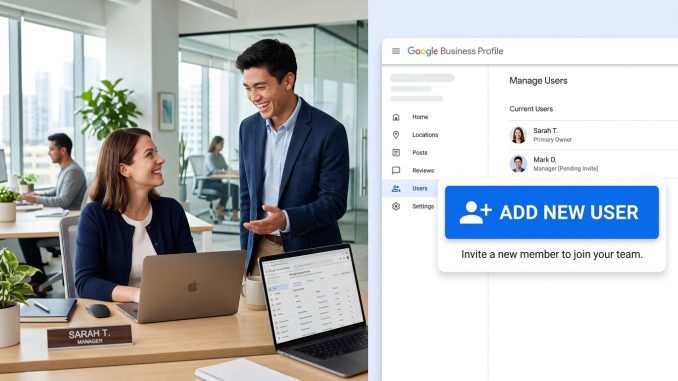
Managing a Google Business Profile isn’t always a one-person job. As your business grows, you may want to give employees, business partners, marketers, or customer support staff access to help manage your listing.
Fortunately, Google allows you to add other users to your Google Business Profile without sharing your personal Google account password. You can assign different levels of access depending on what each person needs to do.
Whether you’re hiring a digital marketing agency, bringing on a new manager, or simply want someone else to respond to customer reviews, this guide will show you exactly how to add users to your Google Business Profile safely.
Why Add Users to Your Google Business Profile?
Adding users allows multiple people to manage your Business Profile while keeping your account secure.
Common reasons include:
- Hiring an SEO or digital marketing agency.
- Allowing employees to respond to customer reviews.
- Letting a manager update business hours.
- Giving a web designer access to add photos.
- Sharing responsibilities among business partners.
- Allowing customer support staff to answer questions.
Instead of sharing your Google password, each person logs in with their own Google account.
Before You Add a User
Before inviting someone, make sure:
- You are the Owner of the Google Business Profile.
- The person has a Google account.
- You trust the person you’re inviting.
- You understand what level of access they need.
Only profile owners can manage user permissions.
How to Add Users to Your Google Business Profile
Follow these simple steps.
Step 1: Sign In to Your Google Account
Log in using the Google account that owns your Business Profile.
Then search for your business name on Google while signed in.
Your Business Profile management panel should appear.
Step 2: Open Business Profile Settings
In your Business Profile management menu:
- Click the three-dot menu or Business Profile settings (the exact wording may vary).
- Select People and access.
This section displays everyone who currently has access to your Business Profile.
Step 3: Click “Add”
Click the Add button.
Google will ask for the email address of the person you want to invite.
Enter the Gmail address (or Google account email) they use.
Step 4: Choose the User’s Access Level
Google allows you to assign different roles.
Choose the role that best fits the person’s responsibilities.
For example:
Owner
An Owner has full control over the Business Profile.
They can:
- Edit business information.
- Add or remove users.
- Transfer ownership.
- Manage reviews.
- Upload photos.
- Update business details.
Only give Owner access to someone you completely trust.
Manager
Managers can perform most day-to-day tasks, including:
- Editing business information.
- Responding to reviews.
- Uploading photos.
- Creating Google Posts.
- Updating business hours.
However, Managers cannot remove the primary owner or transfer ownership.
For most employees and marketing agencies, Manager access is usually the safest option.
Step 5: Send the Invitation
Click Invite.
Google will send an email invitation to the user.
They must accept the invitation before they can access your Business Profile.
How to Accept an Invitation
If you’ve been invited to manage a Business Profile:
- Open the invitation email.
- Click Accept.
- Sign in with the same Google account that received the invitation.
Once accepted, you’ll immediately gain the permissions assigned by the owner.
How to Remove a User
If someone no longer needs access:
- Open People and access.
- Find the user.
- Click their name.
- Select Remove Access.
- Confirm your decision.
This immediately removes their ability to manage your Business Profile.
How to Change a User’s Role
Sometimes responsibilities change.
To update permissions:
- Go to People and access.
- Select the user.
- Choose a different role.
- Save your changes.
You can promote a Manager to Owner or reduce access whenever necessary, provided you have the appropriate permissions.
Best Practices for Managing Users
Adding users is easy, but managing access responsibly is just as important.
Here are some best practices I recommend:
Only Give the Access They Need
Not everyone needs Owner permissions.
If someone only responds to reviews or uploads photos, Manager access is usually enough.
Don’t Share Your Google Password
Every user should access the profile using their own Google account.
Sharing passwords increases security risks and makes it difficult to track who made changes.
Remove Former Employees Promptly
If an employee leaves your business or a contract with a marketing agency ends, remove their access immediately.
This helps protect your business information.
Review User Access Regularly
Every few months, check who has access to your Business Profile.
Remove anyone who no longer needs it.
Keeping your user list up to date is an important part of maintaining account security.
Common Problems When Adding Users
The Invitation Never Arrives
Ask the invited user to:
- Check their Spam or Junk folder.
- Confirm you’re using the correct Google account email.
- Wait a few minutes and refresh their inbox.
“You Don’t Have Permission”
This usually means you’re not the profile owner.
Only Owners can add or remove users.
The User Can’t Access the Profile
Ensure they accepted the invitation using the same Google account that received it.
Using a different account is a common cause of access issues.
Frequently Asked Questions
How many users can I add to a Google Business Profile?
Google allows multiple users to manage the same Business Profile, making it easy for teams or agencies to collaborate.
Can I add someone without a Gmail address?
Yes. As long as they have a Google account associated with their email address, they can be invited.
Is it safe to add a marketing agency?
Yes, but only if you trust them. In most cases, giving an agency Manager access is sufficient. Avoid transferring ownership unless absolutely necessary.
Can I remove someone later?
Absolutely. Owners can remove users or change their access level at any time.
Will users see my Gmail password?
No. Invited users access the Business Profile through their own Google accounts. Your password is never shared.
Final Thoughts
Adding users to your Google Business Profile is a smart way to share responsibilities while keeping your account secure. Whether you’re working with employees, business partners, or a digital marketing agency, Google’s role-based permissions let you control exactly what each person can do.
From my experience helping businesses manage their online presence, one of the best practices is to grant only the level of access each person truly needs. Most day-to-day tasks can be handled with Manager access, while Owner access should be reserved for trusted individuals who are responsible for the long-term management of your business.
By reviewing user permissions regularly and removing access when it’s no longer needed, you’ll keep your Business Profile secure while ensuring your team can work together efficiently.
Leave a Reply