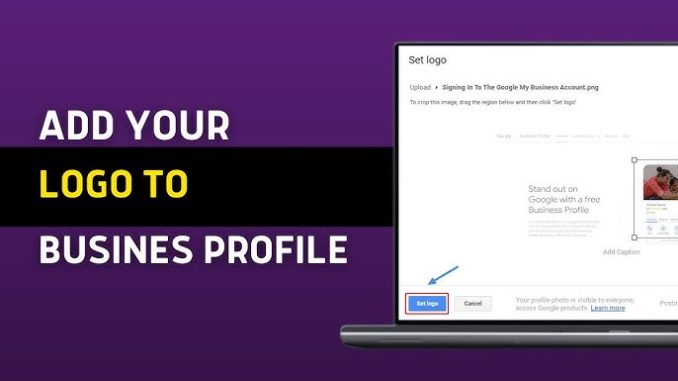
Adding a logo to your Google Business Profile helps customers recognize your business and strengthens your brand identity. Your logo can appear on your Business Profile in Google Search and Google Maps, making it easier for customers to identify your business among competitors.
Whether you’re setting up a new profile or updating an existing one, uploading a professional logo is a simple but effective way to make your business look more credible and trustworthy.
This guide explains how to add a logo to your Google Business Profile, why it’s important, and the best practices for getting the most out of it.
Why Is a Logo Important for Your Google Business Profile?
Your logo is often one of the first things potential customers notice when they view your business profile. A recognizable logo helps reinforce your brand and creates a more professional appearance.
Adding a logo can help you:
- Build brand recognition
- Increase customer trust
- Make your business easier to identify
- Create a consistent brand image across Google and your website
- Improve your overall Business Profile presentation
A high-quality logo won’t directly improve your local search rankings, but it can encourage more customers to engage with your business.
Requirements for Your Business Logo
Before uploading your logo, make sure it meets Google’s recommendations.
For the best results:
- Use a high-resolution image.
- Choose a square image whenever possible.
- Use a JPG or PNG file.
- Keep the logo clear and easy to recognize.
- Avoid blurry, stretched, or heavily compressed images.
- Ensure the logo accurately represents your business.
Using a clean, professional logo helps your profile look more polished.
How to Add a Logo to Your Google Business Profile
Uploading your logo only takes a few minutes.
1. Sign In to Your Google Business Profile
Log in using the Google account that manages your Business Profile.
2. Select Your Business
If you manage multiple locations, choose the business you want to update.
3. Open the Photos Section
Navigate to your Business Profile and select the option to manage your photos.
Google organizes images into different categories, including:
- Logo
- Cover Photo
- Interior
- Exterior
- Team
- Products
Choose the Logo category.
4. Upload Your Logo
Click the upload button and select the logo file from your computer or mobile device.
Wait for the upload to finish.
5. Save Your Changes
Once your logo has been uploaded, Google will review the image before displaying it on your Business Profile.
Although many logos appear quickly, some may take a little longer to be reviewed and published.
Where Does Your Logo Appear?
After approval, your logo may appear in several places across Google’s services.
These include:
- Your Google Business Profile
- Google Search
- Google Maps
- Local search results
- Your Knowledge Panel
The exact placement may vary depending on how customers search for your business.
Tips for Choosing the Best Business Logo
A well-designed logo creates a strong first impression.
Consider these best practices:
- Use your official company logo.
- Keep the design simple and readable.
- Choose colors that match your brand identity.
- Ensure text remains legible, even at smaller sizes.
- Leave enough spacing around the logo to prevent important details from being cropped.
- Update your logo if your business undergoes a rebranding.
Consistency across your website, social media accounts, and Business Profile helps reinforce your brand.
Can You Change Your Logo Later?
Yes. You can replace your logo at any time.
Simply return to the Logo section of your Business Profile, upload a new image, and wait for Google to process the update.
Many businesses update their logos after:
- Rebranding
- Changing company names
- Modernizing their visual identity
- Improving image quality
Keeping your branding current helps maintain a professional online presence.
Common Problems When Uploading a Logo
Sometimes your logo may not appear immediately or may be rejected.
Common reasons include:
- The image is too small or low quality.
- The file format isn’t supported.
- The logo violates Google’s content policies.
- The upload is still being reviewed.
- There is a temporary issue with your Business Profile.
If your logo doesn’t appear after several days, try uploading a new, higher-quality version or check your Business Profile for any notifications.
Best Practices for Business Profile Images
Your logo is only one part of a complete Business Profile.
To create a stronger impression, also upload:
- A professional cover photo
- Exterior photos of your business
- Interior photos
- Product images
- Service photos
- Team photos
- Photos of completed work, where appropriate
Regularly updating your images shows customers that your business is active and well maintained.
Final Thoughts
Adding a logo to your Google Business Profile is a quick and effective way to strengthen your brand’s online presence. A professional logo helps customers recognize your business, builds credibility, and creates a more polished appearance across Google Search and Google Maps.
For the best results, use a clear, high-quality version of your official logo and keep your profile updated with fresh photos and accurate business information. Combined with positive customer reviews and a complete Business Profile, your logo can help create a stronger first impression and encourage more customers to choose your business.
Leave a Reply