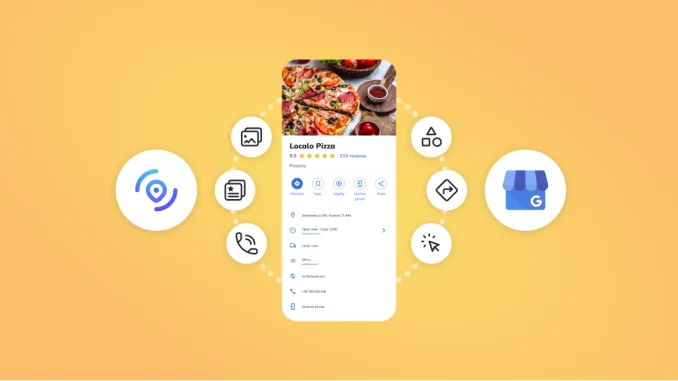
If you own a business and want more people to find you on Google Search and Google Maps, creating a Google Business Profile is one of the smartest things you can do. The best part? It’s free.
Whether you’re a local plumber, restaurant owner, online retailer serving a local area, lawyer, consultant, salon owner, or any other legitimate business, a Google Business Profile helps customers discover your business, contact you, and trust your brand before they even visit your website.
From my experience working with businesses, I always recommend creating a Google Business Profile. One client I worked with sold physical products online. After setting up and optimizing their profile properly, they started attracting more local traffic, which translated into more sales. That experience reinforced something I’ve seen repeatedly: when people can easily find your business on Google, opportunities naturally increase.
In this beginner’s guide, I’ll show you exactly how to create your Google Business Profile correctly from the start.
What Is a Google Business Profile?
A Google Business Profile is a free business listing that allows your company to appear in Google Search and Google Maps.
It displays important information such as:
- Business name
- Business category
- Address or service area
- Phone number
- Website
- Business hours
- Photos
- Customer reviews
- Directions
- Products and services
Instead of customers searching through multiple websites, they can find nearly everything they need directly on Google.
Why Every Legitimate Business Should Have One
In my opinion, every legitimate business should create a Google Business Profile.
Many people assume it’s only for businesses with physical storefronts. That’s simply not true.
If your business serves customers locally—even if you primarily sell online—you can benefit tremendously.
Some of the biggest advantages include:
- Better visibility on Google Search
- Appear on Google Maps
- Increased customer trust
- More phone calls
- More website visits
- More direction requests
- More opportunities to generate local sales
- Easier communication with potential customers
I’ve personally seen businesses experience noticeable improvements in local visibility after properly setting up their profile.
What You Need Before You Start
One mistake many beginners make is rushing through the setup process.
Before creating your profile, gather all your business information first.
Have these ready:
- Official business name
- Business category
- Business address or service area
- Phone number
- Business website
- Email account
- Business hours
- Business description
- Logo
- Cover photo
- Additional business photos
- Social media links (if available)
My advice is simple:
Prepare everything first. Every piece of information matters.
Step 1: Sign in With Your Google Account
Visit the Google Business Profile page and sign in using your Google account.
If you don’t already have one, create a Google account before continuing.
Using an account dedicated to your business is often the best long-term approach.
Step 2: Enter Your Business Name
Type your business name exactly as customers know it.
Avoid:
- Adding unnecessary keywords
- Stuffing locations into the name
- Using fake business names
Use your real business name only.
Consistency helps build trust.
Step 3: Choose the Correct Business Category
This is one of the most important steps.
Your category tells Google exactly what your business does.
Choosing the wrong category can seriously limit your visibility.
I’ve seen businesses struggle simply because they selected incorrect categories.
Take time to choose the category that best represents your primary service.
Step 4: Add Your Business Location or Service Area
Depending on your business model, Google will ask whether customers visit your location.
If customers visit you:
Enter your business address.
If you travel to customers:
Choose your service areas instead.
Be completely honest when entering this information.
Step 5: Add Contact Information
Provide:
- Business phone number
- Website address
Make sure these details are accurate.
Incorrect contact information can cause customers to lose confidence immediately.
Step 6: Verify Your Business
This is the step many beginners overlook.
In my experience, skipping verification is a major mistake.
Without verification, your profile may not receive its full visibility, and you won’t have complete control over your listing.
Follow Google’s verification instructions carefully.
Step 7: Complete Every Section
This is the advice I give every business owner.
Don’t stop after verification.
Complete every available section.
That includes:
- Business description
- Business hours
- Products
- Services
- Photos
- Logo
- Cover image
- Opening date
- Attributes
- FAQs where applicable
Many businesses leave half their profile empty.
That hurts credibility.
A complete profile tells both Google and your customers that your business is active and trustworthy.
Common Mistakes Beginners Make
After helping businesses with their online presence, these are the mistakes I see most often.
1. Skipping Verification
This is one of the biggest mistakes.
Always complete verification.
2. Choosing the Wrong Category
Your category directly affects how your business appears in search results.
Choose carefully.
3. Providing Incorrect Information
Incorrect names, addresses, phone numbers, or business details create confusion.
In some cases, inaccurate information may even lead to profile issues.
Everything should be truthful and consistent.
4. Leaving Important Sections Blank
Don’t assume the basic information is enough.
Every completed field strengthens your profile.
5. Uploading Few or No Photos
Customers trust businesses that show their products, services, staff, and premises.
Photos help build confidence.
What Results Can You Expect?
Creating a Google Business Profile isn’t magic.
However, if you create it correctly and keep it updated, you can realistically expect:
- Increased visibility on Google
- More appearances in local searches
- More customer inquiries
- More phone calls
- More website visits
- Greater customer trust
- Better opportunities to grow locally
The businesses that benefit the most are those that maintain accurate, complete, and up-to-date profiles.
My Advice From Experience
If there’s one lesson I’ve learned, it’s this:
Fill out every section correctly.
Don’t guess.
Don’t rush.
Don’t leave fields empty.
The more complete and accurate your profile is, the more confidence both Google and potential customers can have in your business.
I’ve also seen firsthand how a properly optimized profile can help businesses gain meaningful local traffic and generate more sales.
Taking a little extra time during setup can make a significant difference later.
Frequently Asked Questions
Is Google Business Profile free?
Yes. Creating and managing a Google Business Profile is completely free.
Can an online business create a Google Business Profile?
Yes, provided it legitimately serves customers in a local area. Service-area businesses and businesses selling physical products locally can benefit from having a profile.
Do I need a website?
No. While having a website is highly recommended, you can still create a Google Business Profile without one.
How long does verification take?
Verification times vary depending on the method Google uses, but many businesses complete the process within a few days.
Can I edit my business information later?
Yes. You can update your hours, contact information, photos, services, and other details whenever necessary.
Final Thoughts
If you’ve been putting off creating your Google Business Profile, now is the time to do it.
Every legitimate business deserves the opportunity to be discovered by local customers.
Create your profile carefully, verify it, provide complete and accurate information, and continue keeping it updated.
In my experience, businesses that take their Google Business Profile seriously give themselves a much better chance of being found, trusted, and chosen by customers.
The sooner you get started, the sooner your business can begin building a stronger local presence on Google.
Leave a Reply